If your AirPods Pro 3 are not charging, first identify whether the problem is the case, one earbud, or a battery that stops short of 100%. Those symptoms need different checks. Start with a known-working USB-C power source, then use the steps below to narrow down what is failing.
Troubleshooting guide · Checked October 16, 2026 · AirPods Pro 3
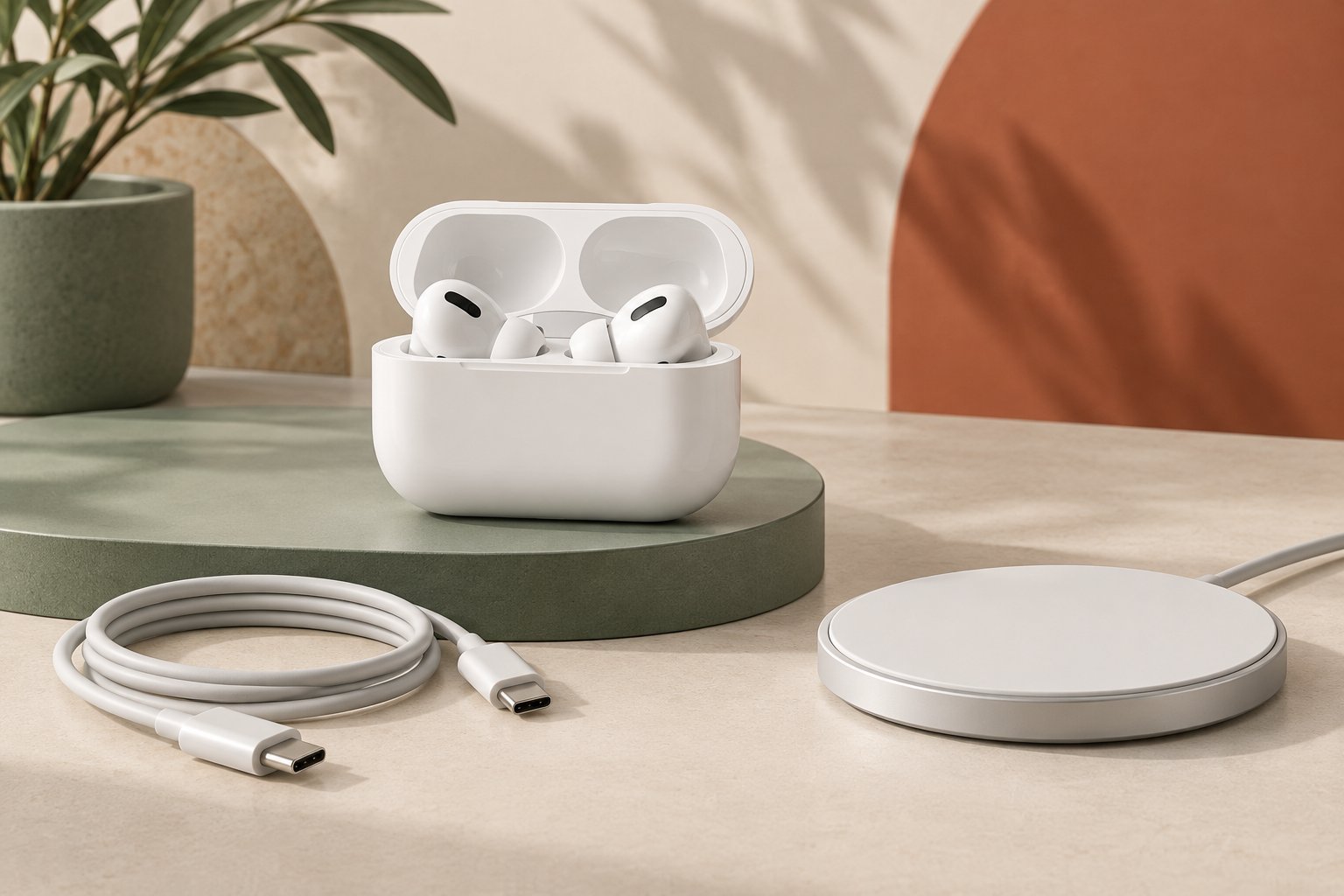
START HERE
Check power before resetting
Put both earbuds in the case, close it, and connect the case to power for at least 15 minutes. Then check the case and each earbud separately. A battery that charges partway may be following an optimized limit rather than failing.
How we assessed this: This guide follows Apple’s published support instructions, with a diagnostic order to help distinguish symptoms. We have not tested these fixes on our own AirPods Pro 3. Stop charging visibly damaged hardware and seek service.
Work out which part is not charging
Do not diagnose the fault from a dark indicator alone. Check the battery information on your paired device and note what changes after a charging attempt. Our suggested starting points are:
| Symptom | Start with | What the check tells you |
|---|---|---|
| Case battery does not increase | USB-C cable, adapter, and outlet | Whether the case receives usable power by cable. |
| Case has charge, one earbud does not | Individual earbud charge status | Whether the issue is isolated to one side. |
| Cable works, charging pad does not | Charger power and positioning | Whether the problem is specific to the wireless setup. |
| Charging stops below 100% | Optimized charging settings | Whether a charging limit explains the behavior. |
| Nothing improves after the checks | The Pro 3 reset sequence, then service | Whether reconnecting resolves the issue before hardware assessment. |
Keep a short record: starting battery levels, charging method, time on charge, and the result. Change one thing at a time. Swapping the cable, pad, adapter, and earbuds together may restore charging, but it will not show which item caused the problem.
AirPods Pro 3 case not charging: test USB-C first
Seat both earbuds, close the lid, and connect a USB-C cable to the case and a powered USB adapter. Check both ends and the wall connection. Leave the case and earbuds charging for at least 15 minutes before checking again. This follows Apple’s charging troubleshooting guidance.
If nothing changes, repeat with a cable and adapter you know work, using a working outlet. This is a comparison test, not proof that the original accessory is broken. If one combination succeeds, reintroduce the original components one at a time to isolate the difference.
AirPods Pro 3 use a USB-C charging case. Apple’s specifications also list MagSafe, Apple Watch, and Qi-certified chargers as supported charging methods. Check the accessory you actually own rather than following instructions for a Lightning case. Source: AirPods Pro 3 specifications.
If you use an outer protective cover, remove it for the test if its removal instructions allow. A cover that obstructs a plug or affects how the case sits adds another variable. Our AirPods Pro 3 case compatibility guide explains the difference between a cover and the electronic charging case.
One AirPod Pro 3 is not charging
With a charged case, put both earbuds inside for 30 seconds, then open it near your iPhone or iPad. Check whether each earbud shows that it is charging. If one side has charge but no sound, test that earbud on its own, with the other left in the closed case. Apple’s one-earbud troubleshooting guide separates these checks from an audio fault.
Compare what you see before and after placing the affected earbud back in its own slot. An audio problem is not automatically a charging problem: if its battery level rises, follow the audio checks instead of buying a new charging accessory.
If this began immediately after an accessory change, return to the previous configuration as a comparison. Do not force the lid shut over an earbud that is not seated normally. Record whether the symptom follows the accessory change; that observation is more useful than repeatedly resetting without checking the fit.
USB-C works, but wireless charging does not
Check that the pad itself has power. Place the closed case with its status light facing upward and adjust its position if the light does not appear. The light can turn off while charging continues, so verify the battery level rather than expecting continuous illumination. Apple describes these checks in its charging support article.
If the case charges by cable but not on the pad, concentrate on the pad, its power source, and the case’s position. This narrows the investigation; it does not prove the case’s wireless charging hardware is healthy. Where possible, compare another compatible charger before deciding which component needs service.
Test the case without a removable cover or attached accessory. If charging works only when uncovered, review the cover maker’s compatibility claim for your exact charger arrangement before buying anything else.
Why AirPods Pro 3 may stop charging below 100%
Apple distinguishes Optimized Battery Charging, which delays a full charge based on your routine, from Pro 3’s Optimized Charge Limit, which can adapt the maximum charge to your usage. A partial charge alone does not establish a fault.
To check, wear the connected AirPods and open Settings → your AirPods → Battery on your iPhone or iPad. Apple says the Pro 3 limit can be disabled for a day or entirely when you need a full charge. The limit requires iOS or iPadOS 26 or later. See Apple’s explanation of charging limits.
Use a temporary override as a diagnostic step when appropriate. If the battery then charges fully, there is no reason to replace a cable solely because the previous reading was below 100%. If one earbud remains empty or the case never gains charge, return to the relevant checks above.
Clean carefully before another charging attempt
Inspect the case without probing its openings. Apple recommends a soft, dry, lint-free cloth for the case and a clean, dry, soft-bristled brush for charging-port debris. Keep liquid out of the ports and do not insert tools into them. After cleaning or liquid exposure, let the equipment dry fully before charging; Apple’s earbud cleaning instructions specify at least two hours after the described wet cleaning. Follow the relevant section of Apple’s Pro cleaning guide.
The speaker-mesh cleaning procedure and charging-port cleaning are different tasks. Do not transfer liquids or tools from one procedure to the other. If debris cannot be removed with the supported method, ask for service instead of scraping the contacts.
How to reset AirPods Pro 3 correctly
Pro 3 uses timed double-taps on the front of the case. The older Pro 2 instruction to hold a rear setup button is not the procedure for this model. A reset also clears custom settings, so expect to reconnect and restore your preferences.
- Place both earbuds in the case, close the lid, and wait 30 seconds.
- On the paired iPhone or iPad, open Bluetooth settings. If the AirPods are listed, use their information button to forget the device and confirm.
- Open the case. Double-tap its front while the status light is on.
- When the light flashes white, double-tap again.
- When it flashes faster, double-tap a third time.
- Wait for amber followed by white, then reconnect using the on-screen instructions.
These are summarized from Apple’s Pro 3 reset instructions. Follow the light cues rather than making six rapid taps. If the reset does not reach white, Apple’s linked guide provides the retry sequence.
When to seek service instead of buying accessories
If a known-working power setup, careful inspection, and the appropriate reset do not help, use Apple Support for assessment. Explain which battery fails to rise, which charging methods you tried, and whether one or both earbuds are affected.
Ask for a service or replacement quote before deciding to replace the entire set. If replacement becomes the practical choice, our AirPods Pro 3 buying guide and sale-price checklist can help you compare the cost. An inexpensive protective shell cannot fix the electronic case.
Common charging questions
Does the case light need to stay on while charging?
No. A light that turns off is not enough to diagnose a fault. Look for a change in battery level after a charging interval.
Should you reset before checking the cable?
Start with power and individual battery status. That may identify a straightforward connection problem without clearing your settings.
Does one silent earbud need replacing?
Not necessarily. Check its charge status and test it separately first. A charged earbud with no sound needs a different investigation from one that never charges.
Our recommendation
Identify the failing part, compare a known-working wired setup, and check charging limits before resetting. Keep the results of each step. If the fault persists, take that record to support so the repair decision is based on the symptoms you actually observed.