Yes, a Fire Stick can work on a non-smart TV. It provides the streaming interface through HDMI, while the television provides the screen and speakers. Before buying, confirm a compatible HDMI input, suitable power, Wi-Fi, an Amazon account, and access to the apps you want.
U.S. buying guide · Updated October 10, 2026 · Fire TV
THE QUICK VERDICT
Keep the TV if its screen and connections still meet your needs
A non-smart TV can use a Fire Stick through a compatible HDMI input. Check the input, power arrangement, internet connection, and your essential apps before ordering. The TV does not need its own app store.
Check the 2026 Fire TV Stick HD listing →How we assessed this: Research-based buying advice using Amazon’s product documentation and listings. We have not tested these devices. Amazon shopping links currently have no affiliate tracking. See our affiliate disclosure.
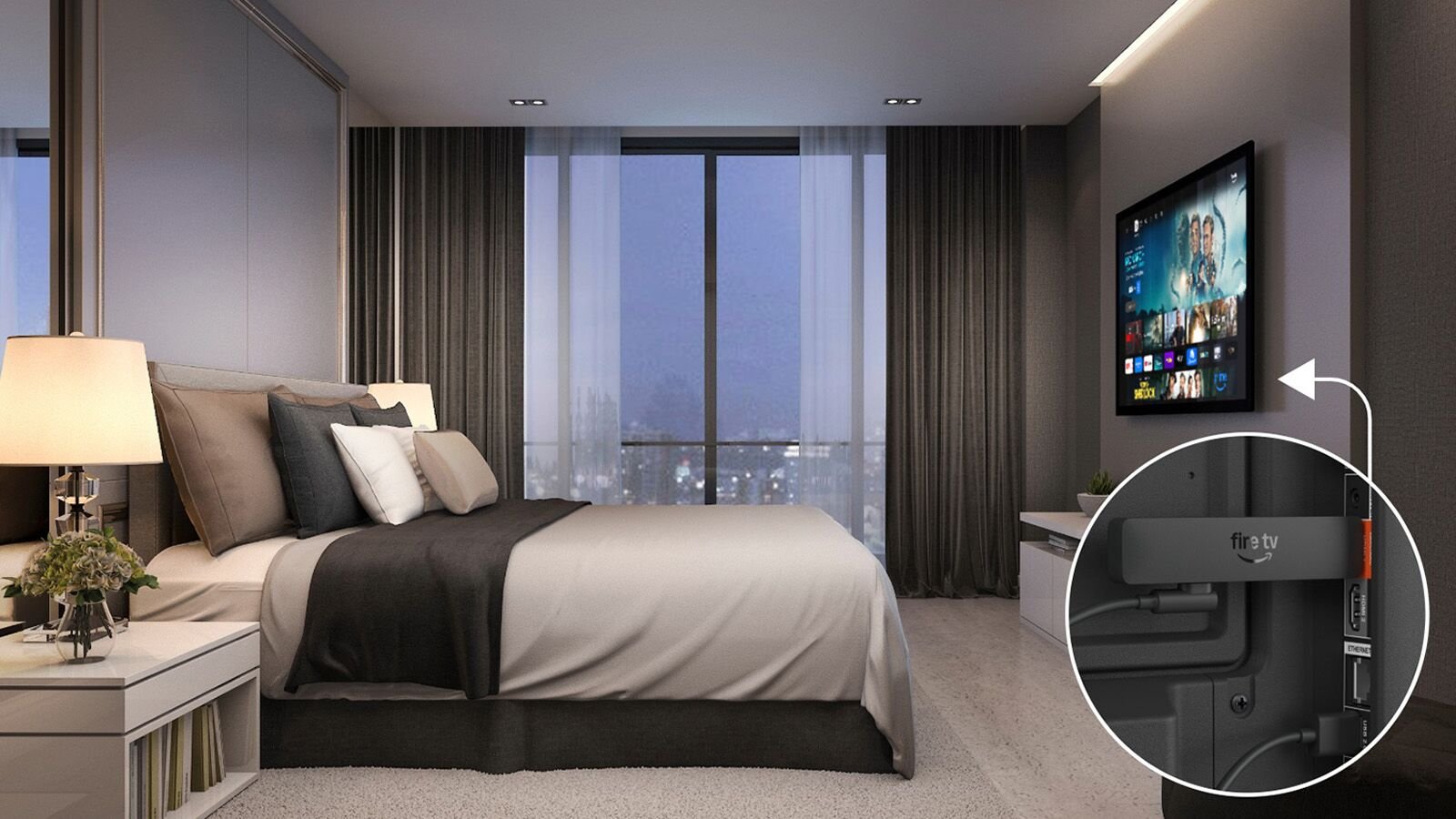
This guide focuses on the 2026 Fire TV Stick HD, also described as the second-generation HD model. For platform choice, start with our Fire TV Stick HD vs Roku comparison for an older TV. Here, the first decision is whether the television you already own can handle the connection.
Will a Fire Stick work on your non-smart TV?
The useful distinction is between a TV without streaming apps and a TV without the required inputs. An older television can still be a practical streaming screen if its picture, sound, and connections meet your needs. A dated built-in app menu does not, by itself, mean the entire television needs replacing.
Amazon describes the 2026 HD stick as an upgrade for TVs with HDMI. That is a starting point, rather than a guarantee for every old display or adapter arrangement. Check the TV manual using the model number on its rear label if you are unsure about its input or supported resolutions.
| What you find | What to do before buying |
|---|---|
| An available HDMI input | Check that it works and that the stick can physically fit. |
| HDMI, but another device uses it | Decide whether swapping devices is acceptable before adding accessories. |
| USB, but no HDMI | USB alone is not the Fire Stick video connection. Check other display options. |
| Only red, white, and yellow sockets | The stick cannot plug directly into these analog inputs. Investigate conversion separately. |
| A damaged or unreliable screen | Compare the complete repair or replacement cost; a streamer does not repair the TV. |
HDMI carries the picture; USB supplies power
For this setup, the two connections have different jobs. The stick goes into HDMI for picture and sound. Its power cable supplies electricity. Finding a USB socket on a TV does not mean that socket can display the Fire Stick interface.
The 2026 HD model supports Direct Power from the television. If the included cable cannot reach or the device reports insufficient power, Amazon’s second-generation HD setup instructions describe using a USB-C cable and a 5V 1A USB wall adapter instead. Follow the instructions for your exact model; a power tip for one generation may not fit another.
Look at the space behind a wall-mounted TV before ordering. An HDMI extender may help with a cramped port, but it is a physical connection accessory, not a way to change the television’s capabilities. Check whether you already own one and whether it is suitable before buying another.
What if the TV has no HDMI?
A passive cable is not a universal solution for converting HDMI into older analog video. An active converter adds another device, another power requirement, and possible compatibility problems. This guide does not recommend a specific converter or promise that paid streaming apps will work through it.
If preserving a particular TV matters to you, establish converter compatibility before purchasing the stick. Otherwise, compare the total setup cost with a display that has the appropriate inputs. Spending less on one component can still leave you with a more expensive, awkward setup.
Can an old HDMI TV still have a streaming problem?
Yes. The connector alone does not settle every compatibility question. For Prime Video playback troubleshooting, Amazon specifies HDCP 1.4 for HD content and HDCP 2.2 for UHD/HDR. Check the display and any equipment between it and the stick if protected video fails to play.
How to set up the 2026 Fire TV Stick HD
Use Amazon’s current setup guide alongside these steps:
- Connect the included power cable to the stick.
- Insert the stick into an available HDMI input.
- Connect power as instructed for this model.
- Fit the remote batteries and select the matching HDMI input with your TV remote.
- Follow the screen prompts to connect Wi-Fi and sign in to your Amazon account.
- Complete equipment control, then install and sign in to the apps you plan to use.
Keep your television remote nearby during setup. Selecting the wrong input can look like a failed installation even when the stick is connected properly. Make a note of the HDMI label so another household member can find the right screen later.
If setup fails, start with the message on the screen. A power warning, a Wi-Fi error, and an app login failure call for different checks. Avoid buying a replacement streamer before confirming which part of the connection is causing the problem.
Which Fire Stick should you buy for a non-smart TV?
For a 1080p television you expect to keep, start with the HD model and compare its complete checkout cost with a compatible 4K option. A 4K device may be useful for a later television upgrade, but it cannot change the resolution of the panel you have now. Our Fire TV Stick HD vs 4K guide for a 1080p TV explains the choice.
The HD stick deserves a look
Your TV still works well, has a suitable HDMI connection, and you want a simple streaming upgrade at a lower total cost.
Pause before buying
You are unsure about the inputs, need an unverified converter, or have not checked an essential app on this exact model.
Amazon lists the 2026 HD model with Vega OS. Check app compatibility rather than assuming an Android installation tutorial applies. The official device identification guide recommends checking an app’s Works With section for the model you own or plan to buy.
Finally, compare the device, any genuinely needed accessories, and delivery. A discount is useful only after the compatibility checks pass. Use our Fire TV Stick HD price and deals checklist to compare offers without mixing generations or bundles.
Fire Stick on a non-smart TV FAQs
Does the TV need Wi-Fi or built-in streaming apps?
No. The Fire Stick handles the streaming interface and its own network connection. You still need suitable internet access where the television is used.
Can you plug a Fire Stick into the TV’s USB port instead of HDMI?
No. In this arrangement, USB is for power. HDMI is the picture and sound connection.
Does buying a Fire Stick include every streaming service?
No. The HD product listing includes free ad-supported viewing options and notes that subscription fees may apply. Budget separately for the content you choose.
Will a 4K Fire Stick make a 1080p TV display 4K?
No. The screen’s resolution remains the limit. Compare a 4K device for its useful features or a planned TV upgrade, rather than expecting a new panel resolution.
Is a TV without HDMI a straightforward match?
No. It is not a direct connection, and conversion requires separate investigation. Check the full cost and compatibility before ordering.
Our recommendation
Check the TV first, then choose the streamer. If the picture is still good and the HDMI, power, and app checks pass, the HD stick is a sensible way to extend its usefulness. Confirm the exact listing before spending.
Sources and product checks
- Amazon: second-generation HD setup
- Amazon: 2026 HD announcement
- Amazon: identify your device and check app compatibility
- Amazon: Prime Video display compatibility
Sources reviewed October 10, 2026. Announcement prices are historical references. Confirm current model details, app availability, seller terms, and checkout prices before ordering.